

























Working from a Reclining Sofa: Setup Tips for Short Tasks

A reclining sofa can be a pleasant place to read a report, listen to a call, or review a few notes during a work-from-home day. The task and device setup matter as much as the cushion. Plan where your screen and hands will go, then keep the sofa’s moving parts and the route around it clear.
Match the sofa to a short work task
| Task | A practical arrangement |
|---|---|
| Listening to a call | A supported seat with the phone or headset controls within easy reach. |
| Reading or reviewing a document | A book or screen supported where you can see it without holding your head down. |
| Brief email checks | A stable device surface and a position that lets your hands reach comfortably. |
| Long typing or precise mouse work | A desk arrangement with separately positioned input devices and screen. |
Choose a natural stopping point before you settle in, such as the end of a document or call. Use that point to put the device down, stand up, and change activity. The arrangement should let you switch back to the desk when the work needs it.
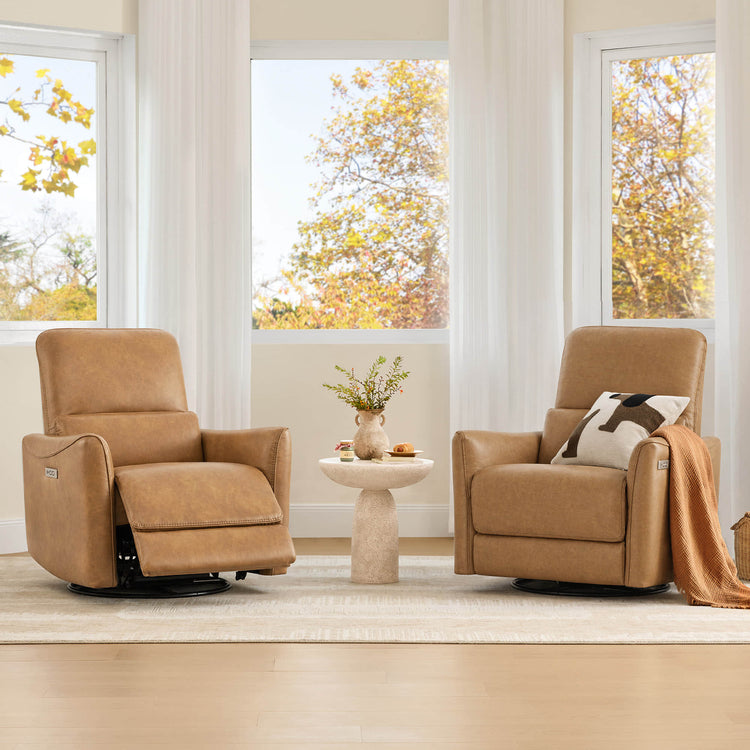
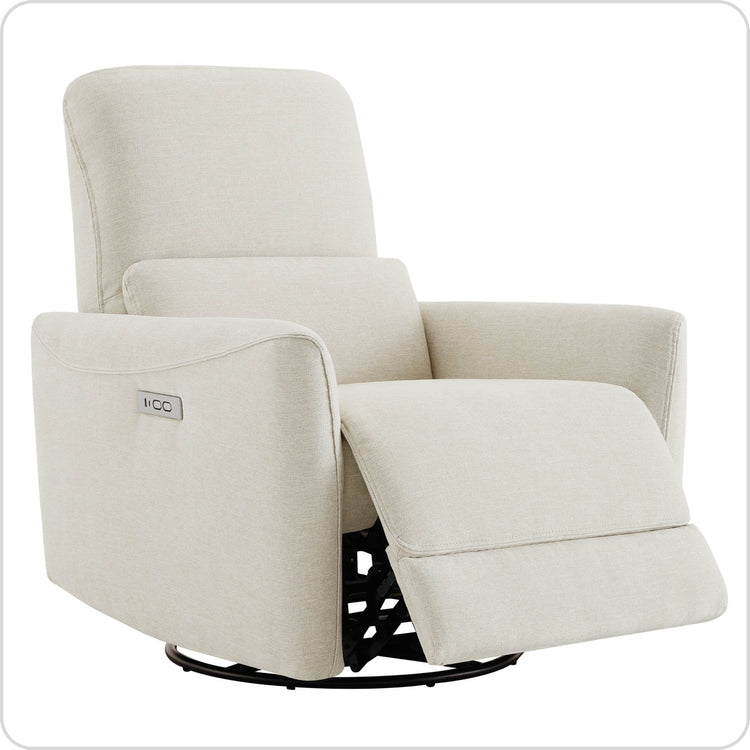
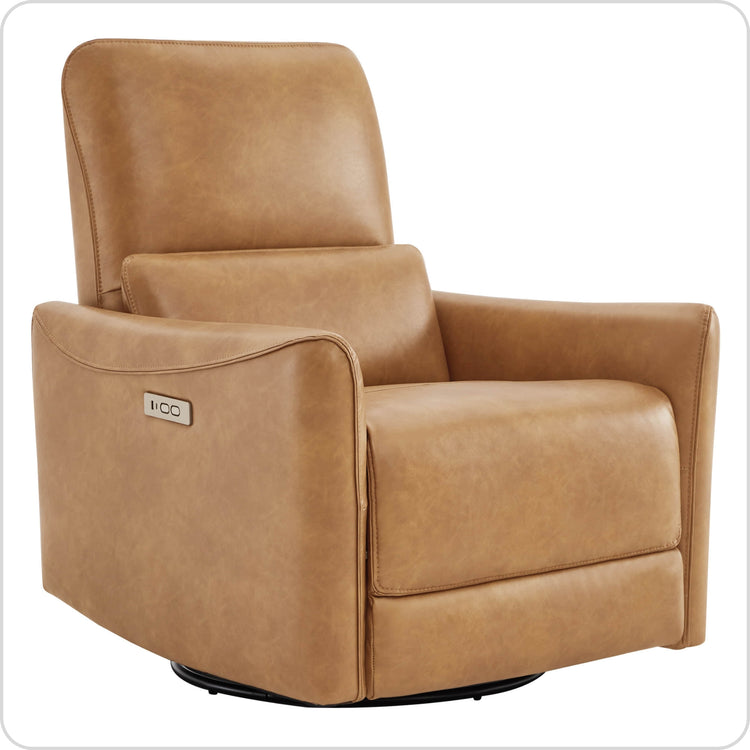
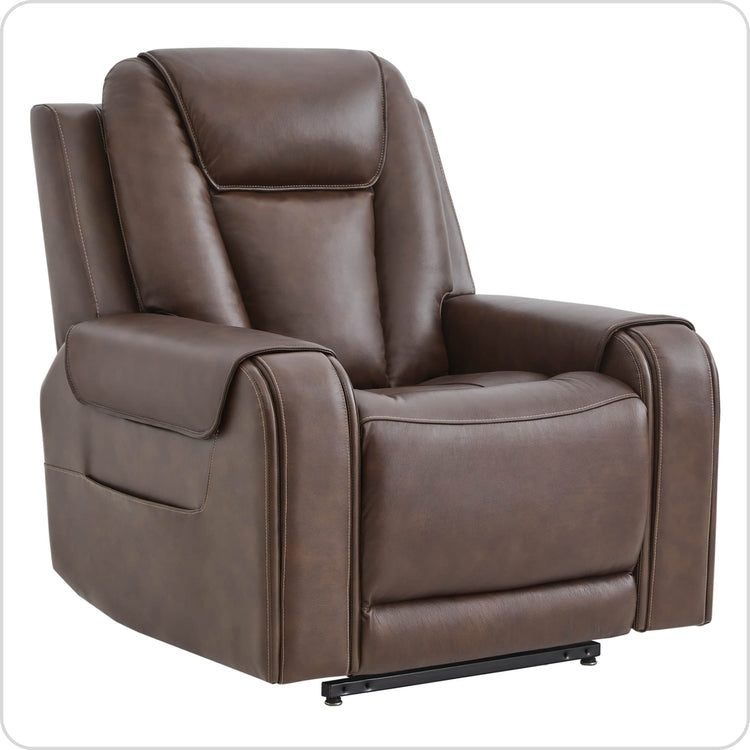
For a smaller second seat beside a desk, our home-office swivel recliner guide explains how to check the chair, desk height, and movement space.

Set up your screen and hands together
A laptop combines its screen and keyboard. Raising the screen changes where your hands reach; lowering the keyboard changes where you look. For more than a quick task, an external keyboard and mouse let you position the input devices separately from the screen.
Use a stable surface that suits the seat position. Keep the mouse next to the keyboard and check that you can reach both with your arms comfortably close to your body. A laptop balanced on a loose cushion can move as you shift, and soft materials can obstruct its ventilation openings. For a Mac laptop, Apple’s ventilation and fan guidance specifies a hard, flat surface and clear vents. Use your device’s own operating instructions for its ventilation needs.
Place the screen so you can read it with your head aligned comfortably with your torso. Adjust text size if needed. Check reflections from windows and lamps from the position you are actually using.
HSE’s workstation and laptop setup guidance addresses supported sitting, screen placement, and separate input devices for prolonged laptop use. Check the whole arrangement each time you change seats.
Support your body without reaching forward
Sit back so the seat and backrest support you, then place the device where your hands and eyes can use it. If you slide to the edge to reach the keyboard, change the work surface or return to the desk.
Check the position of your shoulders, head, and feet when you change the recline angle. A headrest setting that feels good for a film can feel different when reading small text. Keep the task within a comfortable view instead of bending forward to meet it.
Use the footrest and backrest as intended for the selected model. Choose a position that feels comfortable, and change activity if you notice discomfort. Persistent pain or a condition affecting sitting deserves advice from a qualified clinician.
Leave space for the footrest and cables
- Measure the sofa’s fully reclined depth and required rear clearance.
- Place the work surface beyond the path of the footrest and moving back.
- Keep power and charging cables clear of hinges, pinch points, and walking routes.
- Return loose devices and drinks to stable surfaces before changing position.
- Keep children, pets, and objects away from moving parts whenever the sofa is operated.
Check the neighboring seat too. One person opening a footrest should have enough room without moving another person’s laptop table. For a shared living room, preserve the route through the room with the reclining seats open.
Keep ventilation openings on laptops and power supplies clear. Use the supply and cable arrangements specified for the devices and the sofa. WorkSafe New Zealand’s cord safety checklist covers damaged insulation, cords beneath rugs, and cables that furniture could trap. Check the route again with the footrest open.

Choose useful reclining features
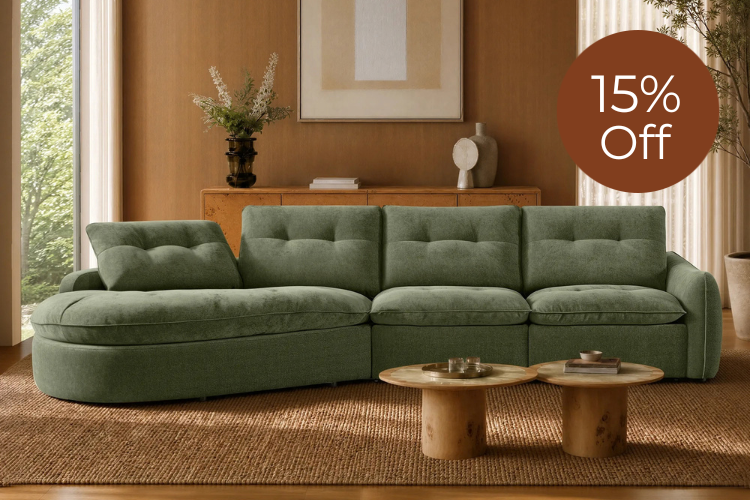
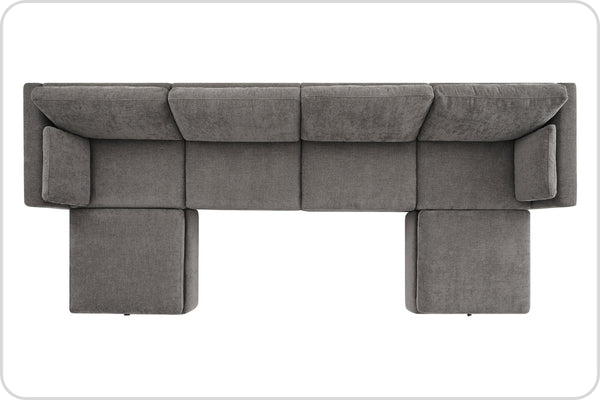
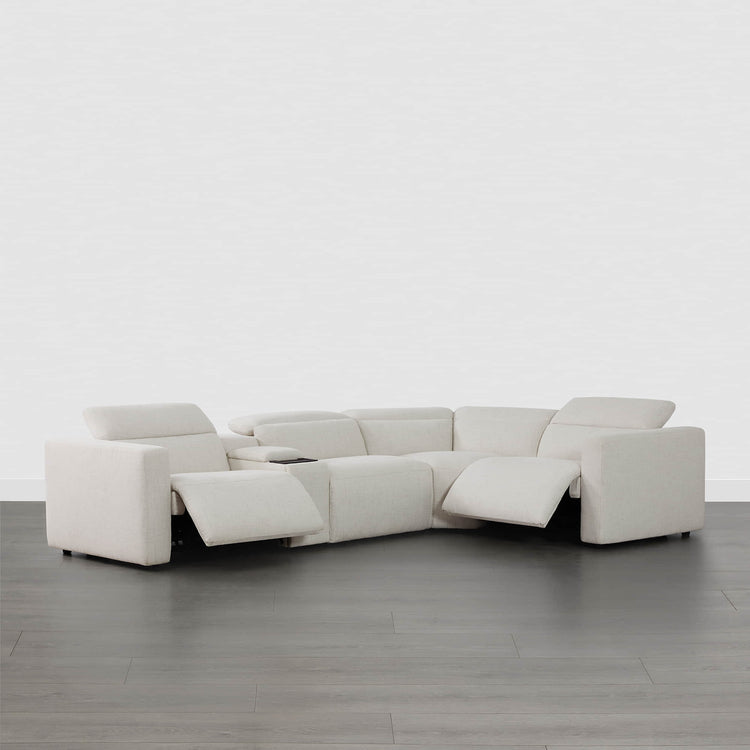
Start with the seat dimensions and the number of reclining seats. Our Ohana 4-Seat Zero Gravity Modular Reclining Sofa is an example of a layout with a raised-leg reclining position. Choose a setting that suits your short task and lets you set the device down easily. Our power and manual recliner comparison explains how each type adjusts, so you can assess the controls you will reach during a short task.
For limited rear space, our Oliver 3-Seat Wall-hugger Reclining Sectional combines a wall-hugger design with power headrest adjustment. Check the full open footprint as well as the space behind the back. Our wall-hugger clearance guide shows why rear clearance and forward footrest extension need separate measurements.
Compare charging ports by their specified output and device compatibility. A port intended for a phone may provide a different charging capability from the one your laptop requires. Our reclining sofa collection provides the model choices to compare with your room.

Build movement into the workday
Change position and activity as the day progresses. Put down the screen between tasks, get up when you can, and vary keyboard work with another activity. Use the end of a call or a completed section of reading as a reminder.
Check the setup again after a few minutes of use. Notice whether you are reaching farther, sliding forward, or holding the screen lower as you relax. Move the device or change seats when the task stops fitting the position.
A sofa can serve useful moments in a workday alongside a desk. Give each place a clear purpose so you can choose the seat and setup that suit the next task.
Working-from-the-sofa questions
Can I work from a reclining sofa all day?
For a full day of keyboard and mouse work, use a setup that keeps the screen and input devices positioned comfortably with your body supported. A reclining sofa can serve short reading, call, or review tasks. Check the position and switch arrangements as your work changes.
How should I position my screen while reclining?
Support the screen where you can read with your head comfortably aligned with your torso. Set the device down before adjusting the seat, then check the view again. For longer keyboard work, position the keyboard and mouse separately so raising the screen does not make you reach up to type.
Can I type with my laptop on a pillow?
A soft pillow is unsuitable if it lets the laptop shift or blocks its vents. Use a stable surface that supports the laptop securely and keeps ventilation openings clear. For sustained typing, separately positioned keyboard and mouse controls give you more flexibility.
What recline angle is best for working?
Use an angle that supports you while keeping the screen easy to see and the input devices within comfortable reach. The suitable setting varies with the sofa, your body, and the task. Change the setup if it makes you crane your neck or reach forward.
Can the sofa’s USB port charge my work laptop?
Only if the port’s specified output and connection meet the laptop’s charging requirements. Check both specifications. Keep the laptop’s usual compatible charger available when the sofa port is intended for lower-power devices.
Recommended Products
 Recommended
Ohana 4-Seat Zero Gravity Modular Reclining Sofa
$3,872.99
Recommended
Ohana 4-Seat Zero Gravity Modular Reclining Sofa
$3,872.99
 Recommended
Oliver 3-Seat Wall-hugger Reclining Sectional Sofa with Power Headrest
$3,169.99
Recommended
Oliver 3-Seat Wall-hugger Reclining Sectional Sofa with Power Headrest
$3,169.99
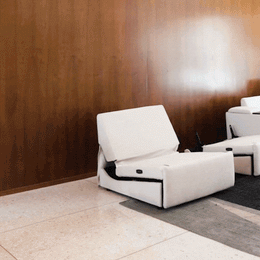 Recommended
Ohana 5-Seat Zero Gravity Modular Reclining Sofa
$4,706.99
Recommended
Ohana 5-Seat Zero Gravity Modular Reclining Sofa
$4,706.99
 Recommended
Haley Buttery-Soft 4-Seat Modular Power Reclining Sofa with Power Headrests
$3,258.99
Recommended
Haley Buttery-Soft 4-Seat Modular Power Reclining Sofa with Power Headrests
$3,258.99
More to Read
 7 Sofa Trends That Actually Improve Comfort in 2026
Upgrade your living room with furniture that supports your body. Here are 7 modern sofa features designed to maximize your daily comfort...
7 Sofa Trends That Actually Improve Comfort in 2026
Upgrade your living room with furniture that supports your body. Here are 7 modern sofa features designed to maximize your daily comfort...
 Mother's Day Gift Guide: Cozy and Stylish Furniture Picks for Modern Moms
Make Mother's Day more meaningful with furniture gifts that bring comfort, smart features, storage, and quiet luxury into her everyday routine.
Mother's Day Gift Guide: Cozy and Stylish Furniture Picks for Modern Moms
Make Mother's Day more meaningful with furniture gifts that bring comfort, smart features, storage, and quiet luxury into her everyday routine.
 Performance Fabric Reality Check: Does It Really Repel Pet Hair and Stains?
Performance fabric is often marketed as a miracle solution for homes with pets and kids, but the reality is more nuanced. It...
Performance Fabric Reality Check: Does It Really Repel Pet Hair and Stains?
Performance fabric is often marketed as a miracle solution for homes with pets and kids, but the reality is more nuanced. It...